
The latest version of JACL can be found on GitHub at https://github.com/DangarStu/JACL. To get a copy of the source, clone the repository:
git clone https://github.com/DangarStu/JACL.git
This will create a directory called JACL with several subdirectories. You will find the executable files in the bin subdirectory after compilation. In the Linux distribution you will find four interpreters: jacl is a console interpreter that uses the GlkTerm library by Andrew Plotkin, cjacl is a CheapGlk build that streams to standard output (handy for piping or scripted runs), and cgijacl and fcgijacl are the two web-based interpreters. cgijacl can be run directly from the command line and is used more for development purposes while fcgijacl must be used with a FastCGI-enabled webserver such as Apache and is used more for production deployments. You will also find the program bjorb, a small utility (based on blc by Ross Raszewski) for creating the Blorb resource files that will contain any images and sounds you wish to use in your games.
The src directory contains the C source code for the JACL interpreters. The bundled subdirectories glkterm and CheapGlk hold Andrew Plotkin's Glk implementations that the console interpreters link against, and bjorb is included for packaging multimedia resources.
Each interpreter has its own dependency profile. The configure script detects what is available on your system and only builds the ones it can:
| Binary | Required Libraries |
|---|---|
| jacl | GlkTerm (included) and ncursesw. Built only when ncurses is detected. |
| cjacl | CheapGlk (included). No external libraries; always built. |
| cgijacl | None for basic operation. The optional Google Sign-In flow needs libcurl, jansson and openssl (see below). Always built. |
| fcgijacl | libfcgi (the FastCGI development library). Built only when libfcgi is detected. |
| bjorb | None. Always built. |
On Debian and Ubuntu, both optional libraries can be installed in one go:
sudo apt install libncursesw5-dev libfcgi-dev
Compilation is a two-step process. From the src subdirectory:
./configure
make install
The ./configure step detects which libraries are available and writes a Makefile that builds the supported interpreters. At the end it prints a summary listing each interpreter as yes or no, so it is easy to see what will be built and why anything is being skipped. If your distribution does not ship the configure script in the source tarball, regenerate it once with autoconf and it will then be present for every subsequent build.
The make install step compiles everything configure approved, copies the binaries into the bin subdirectory of the JACL source tree (so you can run them from there during development), installs the binaries into /usr/local/bin/, and lays out the libraries, sample data and configuration template under /usr/local/jacl/. An existing /etc/cgijacl.conf is preserved; the freshly-installed template is written alongside it as /etc/cgijacl.conf.example so administrator edits (such as google_client_id or session_secret) survive a reinstall.
The configure script accepts a small set of arguments. The most important is the language selector:
./configure --with-language=LANG
where LANG is one of english (the default), french, german, indonesian or spanish. The chosen language is baked into the build — both the interpreter's parser strings and the standard library are switched together. To switch languages later, re-run ./configure with the new value and make install again.
Standard autoconf flags (--prefix, --bindir, CFLAGS, etc.) work as expected. For example:
./configure --with-language=french CFLAGS="-O3 -march=native"
The web interpreters (cgijacl and fcgijacl) support an optional Google Sign-In flow that binds a player's auto-save to their verified Google account. This feature requires three additional libraries at build time: libcurl, jansson and openssl. The configure script probes for all three via pkg-config; if any of them is missing the web interpreters still build, but they link against an auth_stub.c that provides no-op entry points and only the anonymous flow is available at runtime.
On Debian and Ubuntu:
sudo apt install libcurl4-openssl-dev libjansson-dev libssl-dev
On macOS with Homebrew:
brew install curl jansson openssl pkg-config
See the chapter on Google Sign-In Authentication for the runtime configuration and the corresponding cgijacl.conf directives.
In the projects directory you will find several JACL games. A JACL game consists of one or more .jacl files and an optional .blorb file that contains multimedia resources used by the game. If a JACL game consists of more than one .jacl file, the other file will be one of the library files from the include directory.
Inside the projects directory you will also find a temp directory. This is the directory where the interpreter will create the .j2 files. A .j2 file is a concatenation of a main game file and all other files included from that file. They are created by the interpreter when the game is first run and are encrypted by default.
|
Under Unix, the user the JACL interpreter is run as must have write permissions to the temp directory. |
The include directory is found inside the projects directory. In the include directory you will find verbs.library, the main interactive fiction library and other language-specific libraries.
In the guide directory you will find this documentation.
Once you have compiled versions of the JACL interpreters, try running one of the provided games by changing to the bin directory and typing the command:
./jacl ../projects/grail.jacl
When you do so, you should see something like the screen below:
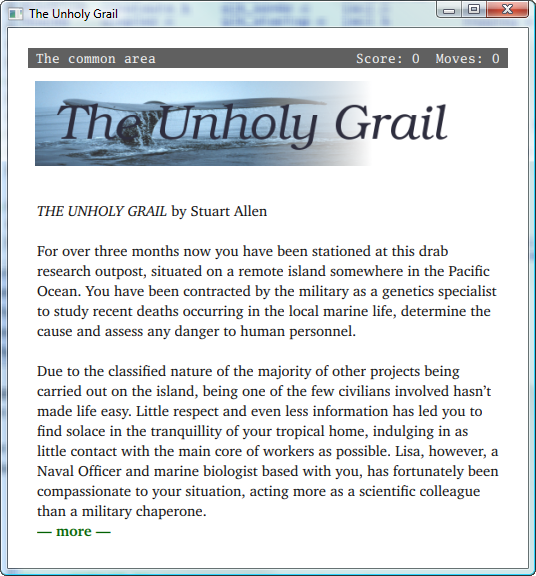
When the cgijacl and fcgijacl interpreters start they will look for their configuration file in three places, in order: ./cgijacl.conf (the current working directory), ../etc/cgijacl.conf relative to the directory the game file is stored in, and finally /etc/cgijacl.conf. The first file found is used.
The configuration files for cgijacl and fcgijacl may contain any of the following lines:
| Directive | Description | Default |
|---|---|---|
| access_log FileName | This indicates the file that should be used to log all moves made while playing. If a directory is specified with the trailing forward slash, the file name access.log is appended to the supplied directory. | ../log/access.log (from the location of the game file) |
| error_log FileName | This indicates the file that should be used to log all errors that occur while JACL programs are running. If a directory is specified with the trailing forward slash, the file name error.log is appended to the supplied directory. | ../log/error.log (from the location of the game file) |
| include Directory | This indicates the directory to look in to find any file specified in a #include preprocessor directive. | A directory called include beneath the directory the game file is stored in. If an included file is not found in this directory, the directory the game file is stored in is searched. |
| temp Directory | This indicates the directory to store the processed version of the game file. | A directory called temp beneath the directory the game file is stored in. If this directory does not exist, the .j2 file will be created in the same directory as the game file. |
| google_client_id ClientID | OAuth 2.0 client ID issued by the Google Cloud console for your site. Enables the Google Sign-In flow described in the HTTP and HTML chapter. Empty (or omitted) disables sign-in and leaves the anonymous flow as the only option. | Empty — sign-in disabled. |
| session_secret String | High-entropy secret used to HMAC the jacl_session cookie. Required when google_client_id is set; if empty, sign-in is disabled regardless of the client ID. Treat as a credential — keep out of source control. | Empty — sign-in disabled. |
| session_max_age Seconds | Lifetime of the jacl_session cookie in seconds. The cookie's HMAC includes this expiry, so a stale cookie can't be replayed past it. | 2592000 (30 days). |
| cookie_expiry Seconds | Max-Age applied to the anonymous user_id cookie that pairs an in-progress player with their auto-saved game. | 21600 (6 hours). |
| data Directory | This indicates the directory the CSV loader will look in for data files referenced by an iterate or update block. | A directory called data beneath the directory the game file is stored in. |
| prefer_remote_user | Bare directive (no argument). When present, and the web server has populated the REMOTE_USER CGI variable (e.g. via HTTP basic auth or an SSO module), REMOTE_USER is used as the player identity in preference to the cookie-based user_id. The directive ignore_remote_user is the opposite and forces the cookie to win. | On (REMOTE_USER takes precedence when set). |
Below is an example cgijacl configuration file:
# "cgijacl.conf"
# CGIJACL interpreter configuration file.

access_log         "/usr/local/jacl/logs/access.log"
error_log          "/usr/local/jacl/logs/error.log"
temp               "/usr/local/jacl/projects/temp/"
include            "/usr/local/jacl/projects/include/"

# Optional Google Sign-In configuration. Omit both lines (or leave
# either empty) to keep sign-in disabled and run the anonymous flow.
google_client_id   "1234567890-abcdefg.apps.googleusercontent.com"
session_secret     "long-random-string-known-only-to-this-server"
To run a sample game through the web interpreter, change to the bin directory and type:
./cgijacl ../projects/desa.jacl
This command will start the JACL interpreter on the default port of 4269, resulting in the following output:
CGIJACL Interpreter v4.7.0 WebJACL: No port number specified (-p), using default port 4269. WebJACL server configured on localhost:4269
To play this game, open your favourite web browser and navigate to the URL http://localhost:4269. When you do so, you should see something like the screen below. If not, see the section on Troubleshooting.
To play this same game from the console, try the following command from the bin directory:
./jacl ../projects/desa.jacl
While the cgijacl interpreter is able to respond to HTTP requests internally, the fcgijacl interpreter is designed to be used with a FastCGI-enabled webserver such as Apache. The cgijacl interpreter is very easy to use and is ideal for developing a new game or allowing a small number of users to play your completed games. The fcgijacl interpreter, when used with a production-quality web server such as Apache, is a better choice for situations where a high level of traffic is expected.
FastCGI is a system for interfacing a web server with an external binary program, in this case the JACL interpreter. With normal CGI, a program is started to handle each individual request. The program executes, produces some output then terminates. With FastCGI, programs are run once then wait in a loop, processing requests as they are made. This suits the JACL interpreter perfectly as it has a fair amount of processing to do when a game is first run, yet very little for an individual move made by a player.
The easiest way to set up fcgijacl with Apache is to use the provided make apache target. This requires Apache2 to be installed on an Ubuntu or Debian system. From the src directory, run:
sudo make apache
This command will:
Once complete, your games will be available at http://localhost/jacl/gamename.fcgi.
If you prefer to configure Apache manually, or are using a non-Debian system, the steps below describe the process in detail.
First, install Apache2 and the mod_fcgid module. On Ubuntu/Debian:
sudo apt install apache2 libapache2-mod-fcgid
sudo a2enmod fcgid
Next, install the bundled Apache configuration. The repository ships a reference config at etc/jacl-apache.conf that you can copy straight in:
sudo cp etc/jacl-apache.conf /etc/apache2/conf-available/jacl.conf
The reference config sets up ScriptAlias /jacl/ mapping URLs to the wrapper scripts directory, plus aliases for /www/, /include/ and /images/ for game assets. The FcgidMaxProcessesPerClass 1 setting ensures only one process runs per game, which is appropriate as fcgijacl handles multiple users via session cookies. The FcgidIdleTimeout keeps idle processes alive for 5 minutes to avoid the startup cost of reloading game files. A commented-out HTTPS vhost block at the bottom of the file shows the recipe for serving over TLS — this is required if you want to enable Google Sign-In.
Enable the configuration and restart Apache:
sudo a2enconf jacl
sudo apache2ctl graceful
For each JACL game, create a small wrapper script in /usr/local/jacl/fcgi-bin/. For example, to set up a game called desa.jacl:
#!/bin/sh
exec /usr/local/bin/fcgijacl /usr/local/jacl/projects/desa.jacl
Save this as /usr/local/jacl/fcgi-bin/desa.fcgi and make it executable with chmod 755. The game will then be accessible at http://localhost/jacl/desa.fcgi.
Finally, ensure the Apache user (www-data on Debian/Ubuntu) has write permissions to the temp and log directories:
sudo chown -R www-data:www-data /usr/local/jacl/projects/temp
sudo chown -R www-data:www-data /usr/local/jacl/logs
sudo chmod 775 /usr/local/jacl/projects/temp
sudo chmod 775 /usr/local/jacl/projects/data
sudo chmod 775 /usr/local/jacl/logs
If a game does not load, check the following log files for error messages:
Common issues include incorrect file permissions on the temp directory, a missing or misconfigured cgijacl.conf file, or the fcgijacl binary not being found at the path specified in the wrapper script.
For players who would rather not build from source, JACL is also packaged as a pre-built desktop app for macOS and Linux. It is an Electron shell wrapped around the cgijacl web interpreter, so it presents the full web interface — the clickable map window, images and sound — in a native window, with a bookshelf of the bundled games. The installers are published on the GitHub Releases page.
On Debian and Ubuntu the app is served from a signed APT repository, so it installs and updates through apt like any other package:
curl -fsSL https://apt.dangarmarine.com.au/jacl.gpg | sudo gpg --dearmor -o /usr/share/keyrings/jacl.gpg
echo "deb [signed-by=/usr/share/keyrings/jacl.gpg] https://apt.dangarmarine.com.au stable main" | sudo tee /etc/apt/sources.list.d/jacl.list
sudo apt update && sudo apt install jacl-desktop
On macOS, download the .dmg from the Releases page and drag the app into Applications. On other Linux distributions, download the .AppImage, which runs anywhere with no installation. A Windows build is not yet available.
JACL also ships as a native iPad app, found in the ios directory of the repository and built on Andrew Plotkin's RemGlk library and Apple's SwiftUI. It runs the same preprocessed .j2 games as the desktop interpreters. Imported games appear on a shelf; tapping one plays it with a scrolling transcript and an on-screen command line. The transcript can be selected and copied, and for a game written in a non-English language a long-press on any word offers a Define action that looks the word up in the game's bundled dictionary and shows the meaning in a small popover — no turn is taken and nothing is typed into the game.
One presentation detail carries over from the web. If the game declares a header_colour constant (see GUI Web Interface), the iPad paints that colour behind the game's opening image — running to the right screen edge and exactly the image's height — so banner art whose edge fades into header_colour blends into it seamlessly, just as it does in the web title bar. There is no separate title_image on the iPad; the banner is simply whatever image the game draws first (typically from its Blorb), so a game meant for both the web and the iPad should use a matching header_colour. The reader can also adjust the transcript text size from the app's Settings screen.
Building and installing the app itself is an Xcode task beyond the scope of this guide; the notes in ios/README.md cover it. For an author the part that matters is getting your own game onto the device, which is two short steps: package the game, then transfer it.
The app runs the preprocessed .j2, not the .jacl source, so a game is distributed as a .jaclgame package: an ordinary zip holding the .j2, any .blorb of images and sounds, and — for a non-English game — the matching language dictionary. The ios/mkjaclgame.sh helper does the whole job in a single step:
ios/mkjaclgame.sh projects/mygame.jacl
This preprocesses the source with jpp (compiling jpp first if it has not already been built), then bundles the resulting mygame.j2, a sibling mygame.blorb if one exists, and the dictionary for any <language>_verbs.library the game includes, writing mygame.jaclgame beside the source. The language is detected from the game's own #include lines, so a new language works automatically once its dictionary exists. By default a debug build is produced, which is the easier one to test with; pass -release for an obfuscated, #debug-free build to distribute:
ios/mkjaclgame.sh projects/mygame.jacl -release
A bare .j2 also imports and runs, but the package is the tidy single-file way to share a game, and the only way to carry images or a dictionary.
 |
The dictionary feature reads the same <language>_words.csv files the web interpreter uses for its click-to-define lookups (see the CSV Files chapter). mkjaclgame.sh looks for the CSV in a data directory beside your game and then in the repository's projects/data directory. |
The app registers itself as a handler for .j2 and .jaclgame files and supports document sharing, so a package can reach it several ways:
However it arrives, the game appears on the shelf titled by its game_title constant; tap it to play. Re-importing a newer package with the same name overwrites the installed copy, so updating a game is simply a matter of sending the new build. Swiping left on a game, or using the Edit button, removes it.
JACL ships with a Visual Studio Code extension that provides syntax highlighting and bracket/comment configuration for .jacl and .library files. The source lives in the editors/vscode-jacl directory of the repository, alongside a pre-built jacl-0.1.0.vsix bundle.
To install from the pre-built package, run:
code --install-extension editors/vscode-jacl/jacl-0.1.0.vsix
VS Code will then automatically apply JACL highlighting whenever you open a file with the .jacl or .library extension. The highlighter recognises every keyword listed in the Reference Card, every direction and attribute constant declared by the interpreter, and the {name / +name function syntax, as well as JACL's string-with-tilde HTML attribute convention.
To rebuild the .vsix after modifying the grammar, install the vsce packaging tool (npm install -g @vscode/vsce) and run vsce package inside the editors/vscode-jacl directory.
If your editor of choice is something other than VS Code, the TextMate grammar at editors/vscode-jacl/syntaxes/jacl.tmLanguage.json is portable to any editor that consumes that format (Sublime Text, Atom forks, and several JetBrains IDEs through plugins).